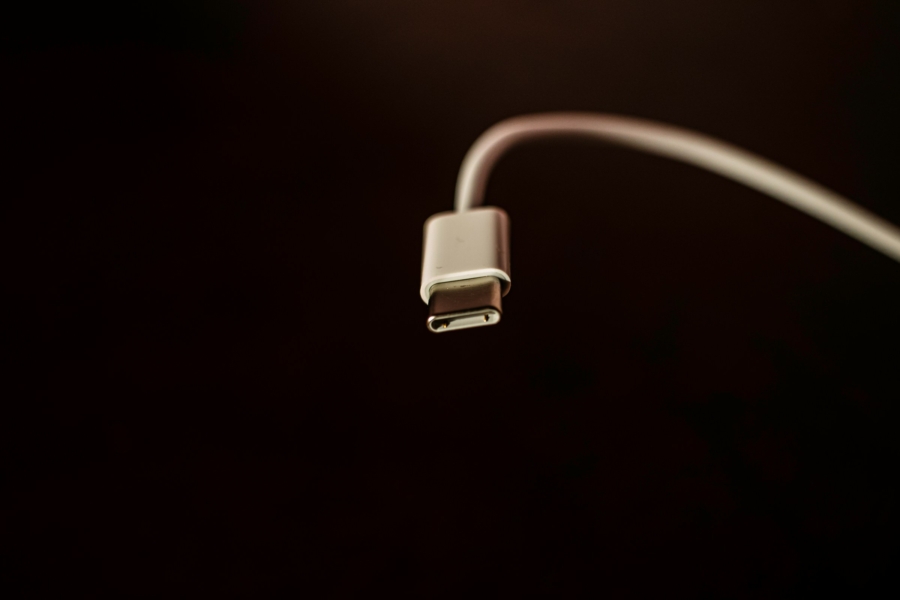
How to Troubleshoot USB-C Connection on Dell U2725QE
This is yet another post for safe keeping. I don’t intend to dig deep into what caused it, or let alone start combing through drivers. But I can say two things for certain: a. the same setup worked on macOS without any fixes, so it is an issue on Windows, and b. I’m not entirely certain this is a problem a mere mortal can find a proper fix. I do have a hack, but some may not like it.
My current setup looks like this: from Windows PC, it is connected to Dell U2725QE Thunderbolt monitor via USB-C cable (supports USB only connection) and DisplayPort for video, then other devices are connected to the Thunderbolt monitor. It is impossible for me to use the included cable to directly connect the camera to the PC; the monitor and the camera are sitting on a standing desk, and the included cable is not long enough when the desk is at full height. Same goes true for the included cable for the monitor.
Symptoms
I started having issues with the Thunderbolt monitor after I’ve installed the standing desk and began rerouting the cables. The same setup worked flawlessly with a MacBook Air, so the hub was definitely in tact. In fact, when I switched back to old cables to double check if either the hub or the USB-C port on the PC isn’t damaged, one of the problems kept happening:
- All the devices were connected at USB 2.0 (480 mbps) speed.
- All of USB 2.0 devices were connected properly but none of the USB 3.0+ were connected.
Troubleshooting and Workaround Fix
To begin troubleshooting, I began with the suspicion it might be software or driver issues on the part of USB devices or USB hub. Not because I experienced something different, but because it would’ve been easier than to duck underneath the desk again. It was slow, but relatively easy to rule them out. I simply reinstalled everything. That didn’t do the trick.
The next in line was to test all, and I mean all, of the adapters, cables, and hubs. There is no consumer level USB tester (ones I could find weren’t priced for home or small office) available, so I resorted to using a secondary computer. This is where the hardware matters. On Windows PC, not all ports are Thunderbolt, let alone USB-C. I know my MacBook Air to have all the ports in USB-C at the rating as it should, so I’ve used it as a test bed. After removing bad adapters and cables, it would still have the same issues.
What ultimately worked as a “workaround” was following. Instead of using USB-C port on the Windows PC, I’ve used 10 Gbps rated USB-A port. From there, I’ve used a 10 Gbps rated USB-A to USB-C OTG adapter, as the only cable long enough from the desk to the hub was in USB-C. With properly rated USB-C cable, I’ve connected it to the USB-C upstream (port 8). Somehow this wouldn’t work either, until I tried flipping USB-C cables upside, downside on the PC, then the same by the hub, total of 4 per cable.
After Windows has discovered all the USB 3.0+ devices, and despite the connection speed being higher than 3.0 (3.0 is rated 5 Gbps), it displayed 3.0 on Settings. On USB Device Tree Viewer (easier to identify the bandwidth), it clearly showed it was connected via 10 Gbps bandwidth.
Additional Context
One other thing I’ve learned through this rewiring fiasco. Some USB devices take longer than others to be discovered by Windows, and some of them go so far to negotiate for lower speed until the higher speed is necessary. Apparently this was not an isolated incident, and many have suggested on the internet to do the stress test. In my case, I’ve simply used a USB thumb drive and see if it negotiated for the USB 3.0+ speeds.
If I were to hazard a guess what is causing it, it appears either there are driver issues on the parts of Windows, possibly on USB-C port, or the firmware issues on the parts of the hub. Either way, it was not the streamlined experience I was hoping to get in 21st century.